


Google Meet
4.4708.23K Reviews
App Specs
- Version
- Varies with Device
- Updated On
- License
- Free
- Downloads
- 10,000,000,000+
- Developer
- Google LLC
- Categories
- Communication
- Platform
- Android, iOS
Screenshots



 Analysis by AppCompare
Some conversations need a quick call; others go better when everyone can see a face, a document, or the same screen. I find Google Meet most useful when a text thread has become too slow or ambiguous and a short video conversation can settle things. It is a communication app from Google LLC, available free, with an Everyone age rating. Its appeal is less about turning every exchange into a meeting and more about making a planned conversation easy to join across phones, tablets, Google Nest devices, and the web.
When a call is better than another message
I would reach for Meet when tone or timing matters: checking in with family who live elsewhere, talking through a shared task, or helping someone understand a process that is awkward to explain by text. For a small group, seeing people react in real time can make a conversation feel less fragmented than a chain of messages. It also gives people a natural point to ask questions instead of guessing what a short reply meant.
That does not mean video is the right default. If I only need to send an address or confirm a time, a message is quicker and asks less of everyone’s attention. A call works best when there is enough to discuss to justify setting aside a few minutes, and when the people involved are ready to be present rather than multitasking through another screen.
Guides and Analysis on Google Meet
Conversation flow across devices
Meet’s broad device support is useful when a group does not all use the same kind of phone. Someone can join from an Android or iOS device, while another person uses a tablet or a web browser. That flexibility lowers the chance that a simple conversation gets held up because one person needs a particular handset. Google Nest support also gives the app a place in a home setup, rather than limiting it to a phone in someone’s hand.
In my experience, the most helpful preparation is not complicated: decide who is starting the call, share the joining details in the place your group already checks, and give everyone a moment to settle before launching into the main point. If the call is about a document or a set of steps, I would have that material ready first. Screen sharing and real-time captions can help people follow along, but they work best when the speaker explains what is on screen instead of assuming everyone has noticed the same detail.
A realistic example is a family arranging a weekend visit. One person can bring up the practical questions—arrival time, who is bringing what, and which details still need a decision—while everyone can interrupt to clarify. The call may take longer than a string of quick texts, but it can prevent the familiar loop of crossed messages and half-understood plans. For a very short decision, though, a group chat is still the lighter option.
How it changes the rhythm of a conversation
I find that a live call can change a conversation from a series of delayed replies into a shared moment where people can clarify meaning as they go. This section looks at when that shift helps and how to keep it purposeful, rather than letting every small question become another meeting.
Worth Reading Before You Choose

Basketball Stars: Multiplayer Is Fast, but Can It Recover When Matches Go Wrong?

WEBTOON Turns Phone Updates Into a Better Reading Routine

Link to Windows Runs on Shared Habits, Not Social Feeds

How Alibaba.com Dominates the B2B Marketplace

Metro's Quiet Rise: Redefining Mobile Communication

Harnessing Ecosystem Power with Phone Tracker by Number
Useful structure without making every chat formal
The meeting-oriented layout gives a call a clear beginning: someone starts it, others join, and the group has a shared space to talk. That structure can be a relief when a conversation keeps getting postponed in messages. It is also a trade-off. People may feel they need to be available at the same time, whereas asynchronous messaging lets each person answer when it suits them.
Calendar integration can help when a conversation has a real appointment attached to it. Instead of relying on someone to find an old message at the last minute, the meeting can sit alongside other scheduled commitments. I would still send a concise reminder in the group’s usual channel if attendance matters; a calendar entry is useful organization, not a guarantee that everyone has seen it or can join.
Attention, sound, and the cost of being on camera
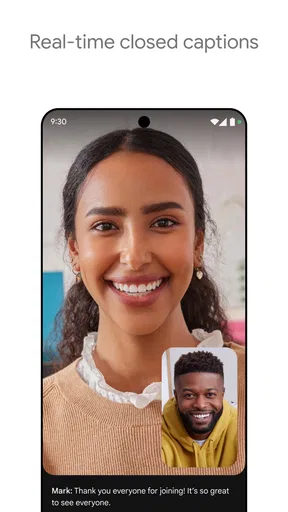
Video calls make small signals easier to read, but they also demand more attention than listening to a voice message. People are watching faces, following speech, and sometimes trying to inspect shared material at once. Captions can be valuable when a participant has difficulty catching a phrase or is in a setting where listening is less convenient, but they are a support for the conversation, not a substitute for speaking clearly and checking that the group has understood.
I also like having straightforward access to the microphone and camera controls. A useful habit is to check them before joining a sensitive or noisy conversation, then mute when background sound would distract others. Turning the camera off can be the more considerate choice when the connection is struggling or the setting is private. The point is not to look polished; it is to make the exchange comfortable and understandable for the people taking part.
Boundaries and choosing the right tool
Meet is strongest when people agree that a live conversation is worth the interruption. It is less suitable for updates that do not need an immediate response, for participants who cannot comfortably join at the same time, or for situations where audio-only contact is preferable. In those cases, a messaging app, email, or an ordinary phone call may fit better. Compared with a text-first alternative, Meet offers facial cues and shared visual context; compared with a voice call, it adds video and screen sharing but asks for more visual attention.
Before starting, I would be clear about the purpose and a sensible stopping point. A short call to resolve one question can stay focused; an open-ended invite can quietly turn into an obligation. If someone is presenting, sharing only the relevant material and narrating the important parts helps participants keep up without forcing them to guess where to look. These small choices make the app feel less like another demand for attention and more like a useful way to coordinate.
Who will get the most from it
Meet is a natural fit for people who already use Google services, groups that regularly coordinate across different devices, and anyone who benefits from seeing a person or a shared screen while talking. It can suit remote family catch-ups, study discussions, and work conversations where participants need to explain something together. Google’s communication app has an average rating of 4.4 from around 12 million ratings, and it has passed 10 billion installs, a sign of how widely it is used rather than a promise that it will suit every group.
I would skip it for casual coordination that is already handled efficiently by text, or for a group that does not want to schedule face-to-face calls. People who need a specialized meeting workflow should compare the tools their organization already supports before switching. Meet’s value is strongest when easy access across devices matters more than having every possible control in one place. It was released on August 16, 2016, and remains a familiar option for people who want video calling without paying to download the app.
One practical way to keep calls clear is to give the meeting a narrow job: decide a date, review a draft, or explain a process, rather than trying to cover everything at once. If the conversation produces decisions, name them aloud before everyone leaves and send a brief written recap where the group can find it. That is especially helpful for people who joined late or could not keep their attention on the screen throughout. The video call is good at bringing people together; it is not automatically a record of what they agreed.
What to expect before joining
For someone who has never used it, the first call may involve a little orientation: finding the meeting, checking the microphone and camera, and learning where the controls sit. I would avoid making the first attempt a high-pressure presentation. Try a low-stakes call with a friend or colleague, and check that everyone knows how they will join. That small rehearsal can prevent the host from spending the opening minutes troubleshooting while everyone waits.
Connection quality and surroundings still shape any video call. If the network becomes unreliable, turning off video may help reduce the amount of activity competing for attention, while moving somewhere quieter can make speech easier to follow. I would not treat any app as a fix for a weak connection or loud room. Having a backup plan—such as switching to a regular call or continuing the key points in writing—keeps a technical hiccup from derailing an important conversation.
A familiar tool, with sensible limits
Google Meet sits in the crowded video-calling category alongside tools built around messaging, workplace meetings, or personal calls. Its practical distinction is the combination of Google account familiarity and access from mobile devices, tablets, Nest, and the web. A competing service may be a better fit if a group already organizes everything there or needs a particular workflow. I would choose based on where participants can join easily, not on a long feature checklist that nobody in the group will use.
Google LLC develops the app, and its broad reach can make it easier to suggest for a mixed-device group. Still, a popular tool is not automatically the best one for every relationship or organization. The right choice depends on whether people want video, can join at a shared time, and feel comfortable using a camera. Those are social decisions as much as technical ones, and they matter more to a smooth conversation than simply installing another app.
For me, the best use of Meet is deliberate: bring people together when a live exchange will add clarity, then let the conversation end when its purpose is met. It makes visual discussion accessible across several kinds of devices and gives groups tools such as screen sharing and captions, while still asking participants to manage their time and attention. If your calls regularly benefit from faces, demonstrations, or quick back-and-forth, it is worth trying. If most of your communication is brief or asynchronous, keeping to messages may be the kinder and simpler choice.
Getting Started with Google Meet
Kicking things off with Google Meet is as easy as pie. If you're already in the Google ecosystem, you’re halfway there. Just sign in with your Google account, and you’re set. The app is available for both Android and iOS, so no one’s left out of the fun. And if you’re anything like me, who loves a seamless integration across devices, this is a big win.
User Experience and Interface
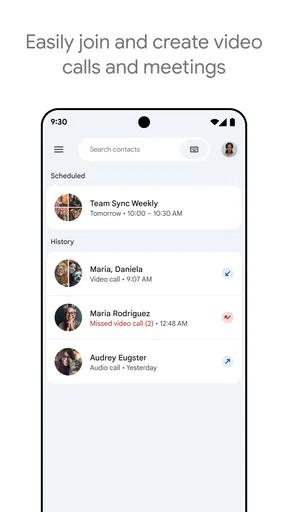
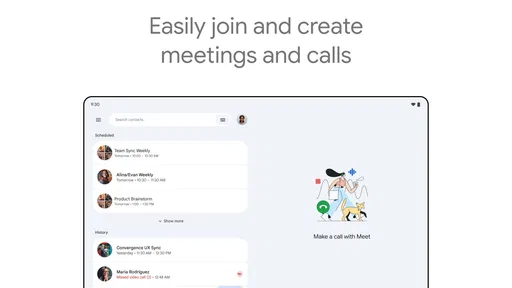
First things first, the interface is super clean. No clutter, no confusion. You get a straightforward layout that even the least tech-savvy can navigate without breaking a sweat. The home screen displays your scheduled meetings, and starting a new one is just a tap away. Simple, right?
Once you’re in a meeting, the controls are intuitive. Mute, unmute, turn your camera on or off – everything’s right there within easy reach. And let’s not forget the virtual backgrounds. Perfect for hiding that pile of laundry or just adding a bit of fun to your calls.
Features That Stand Out
What makes Google Meet really shine is its feature set. First off, the video quality is top-notch. Even with a less-than-stellar internet connection, the app manages to keep the video smooth and the audio clear. It’s like magic, but it’s not – it’s just Google doing its thing.
Another standout feature is the integration with Google Calendar. Ever been late to a meeting because you forgot the link? Well, those days are over. Google Meet sends the invite straight to your calendar, complete with a link to join. Easy peasy.
And for those who love a bit of collaboration, the app offers screen sharing and real-time captions. Whether you’re presenting slides or watching a movie together, everyone stays on the same page.
Security and Privacy
In today’s world, security is a big deal, and Google Meet doesn’t skimp on this front. All meetings are encrypted, and the app offers robust security features to ensure your information stays private. Plus, with features like two-step verification, you can rest easy knowing your meetings are safe from unwelcome guests.
Performance on Different Platforms
Whether you’re on your phone, tablet, or computer, Google Meet performs consistently well. On Android, the app is lightweight and doesn’t hog your device’s resources. On iOS, it’s just as smooth. And if you’re using a web browser, the experience is equally seamless.
One thing I noticed is how quickly the app connects and maintains connection stability even when switching networks. Handy for when you’re on the move and bouncing between Wi-Fi and mobile data.
Room for Improvement
Now, no app is perfect, and Google Meet has a few quirks. For starters, while the app is pretty intuitive, first-time users might need a minute to figure out all the bells and whistles. A short tutorial wouldn’t go amiss.
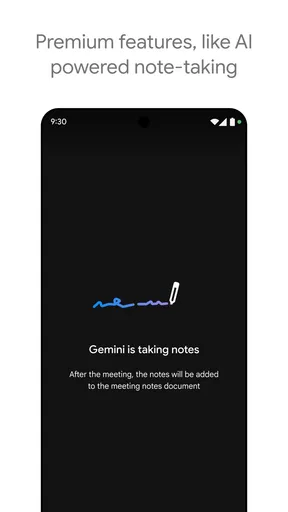
Also, while the app is free for personal use, some advanced features are locked behind a paywall with Google Workspace. For casual users, this might not be a dealbreaker, but it’s something to keep in mind if you’re looking for more robust functionalities.
Final Thoughts
All in all, Google Meet delivers on its promise of a reliable, easy-to-use video conferencing platform. Whether you're hosting a business meeting or just hanging out with friends, it’s got you covered. The integration with other Google services makes it a no-brainer for anyone already using Google’s suite of tools.
In a world where virtual meetups are becoming the norm, having a dependable app like Google Meet is essential. So, if you’re looking for a video calling app that’s user-friendly, feature-rich, and won’t let you down at the crucial moment, give Google Meet a whirl. You might just find it’s the perfect fit for your virtual needs.
Pros
- Seamless integration with Google Workspace.
- High-quality video and audio performance.
- Easy to schedule and join meetings.
- Supports a large number of participants.
- Secure with strong encryption.
Cons
- Limited features in free version.
- Requires a Google account to join.
- No recording option in free plan.
- Can consume significant data bandwidth.
- Less customization for meeting layouts.
FAQs for Google Meet
What are the key features of Google Meet?
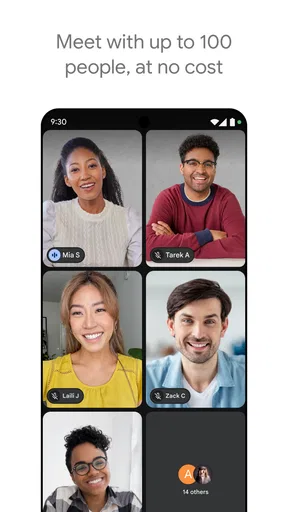
Google Meet offers high-quality video conferencing with up to 100 participants for free. It includes screen sharing, real-time captions, and integration with Google Calendar. The app is designed for seamless collaboration with tools that enhance virtual meetings. Users can also enjoy features like noise cancellation and low-light mode.
Is Google Meet free to use?
Yes, Google Meet offers a free version with essential features suitable for personal and small business use. The free plan allows meetings up to 60 minutes long with a maximum of 100 participants. For advanced features, businesses can opt for Google Workspace plans, which include longer meeting durations and additional tools.
How secure are meetings on Google Meet?
Google Meet prioritizes security with measures like encryption in transit, anti-hijacking features, and adherence to privacy regulations. Meeting hosts have control over who can join, and all participants must have a Google account. These security features ensure that meetings remain private and secure from unauthorized access.
Can I record meetings on Google Meet?
Recording is available but typically only for Google Workspace users. This feature allows meetings to be saved to Google Drive for later viewing. Free users do not have access to recording capabilities, so if this feature is essential, consider upgrading to a paid plan for comprehensive options.
What devices are compatible with Google Meet?
Google Meet is compatible with a range of devices, including Android and iOS smartphones and tablets, as well as Windows, Mac, and Linux computers. The app can be accessed via a web browser or downloaded from the Google Play Store and Apple App Store, providing flexibility for users across different platforms.


